

Setting Up an Orbit Sandbox Instance
A good way to learn how to use Orbit is through the sandbox feature available at zenko.io under Try Zenko.
Prerequisites
- A web-connected browser
- One or more cloud storage targets (AWS, RING, GCP, Azure, etc.)
The Sandbox is a great place to learn how Orbit will help you manage your data. To set up a Sandbox instance:
Open zenko.io, and click Try Zenko.
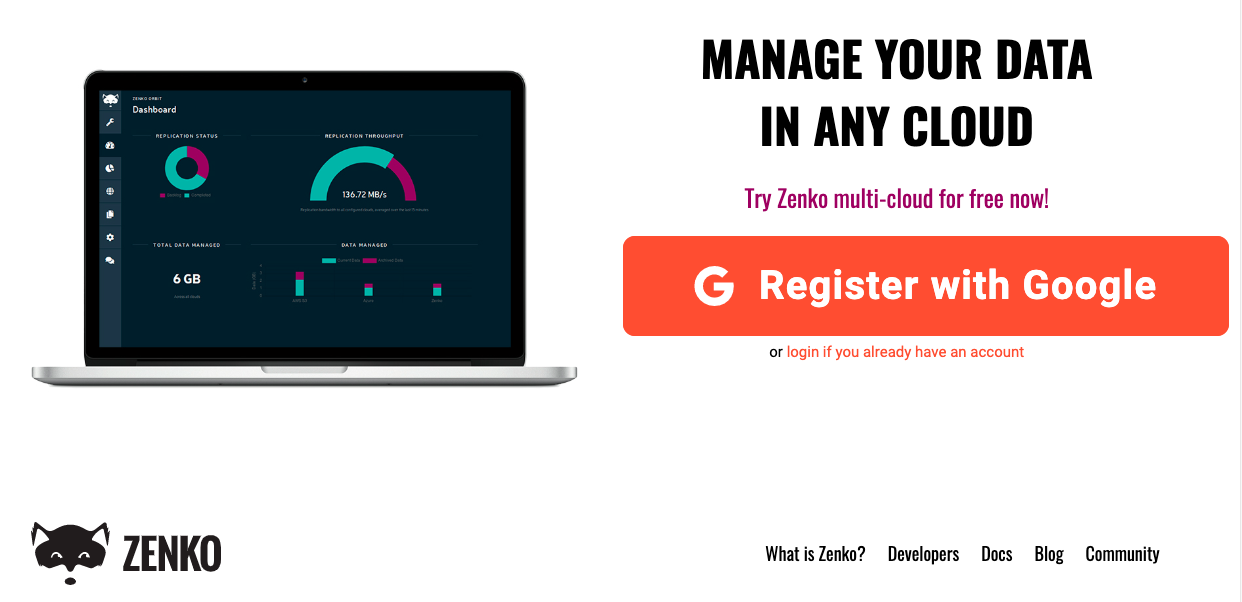
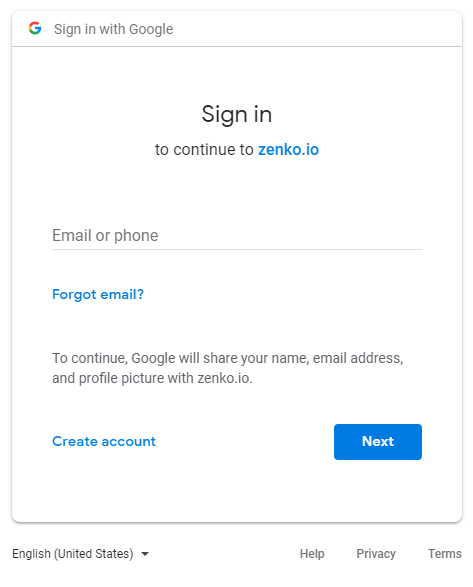
Click Register with Google. You must authenticate using a Google ID.
After you have registered, the Welcome dialog displays:
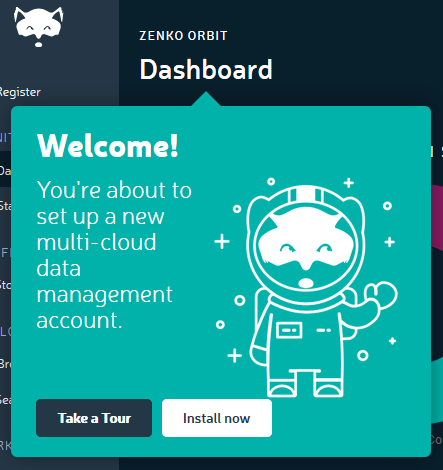
Click Install now.
The REGISTER AN INSTANCE screen displays:
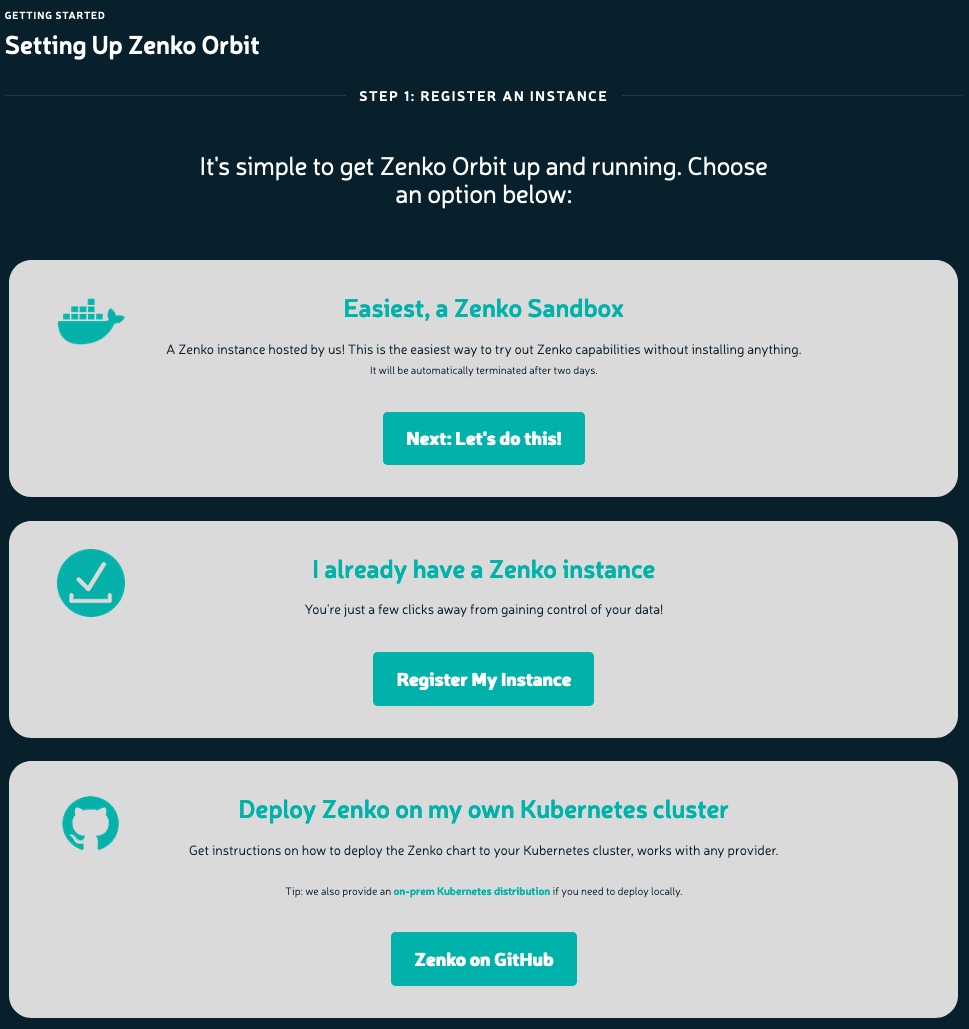
Choose the Sandbox option (Next: Let’s do this!)
The CREATE YOUR ZENKO SANDBOX screen displays:
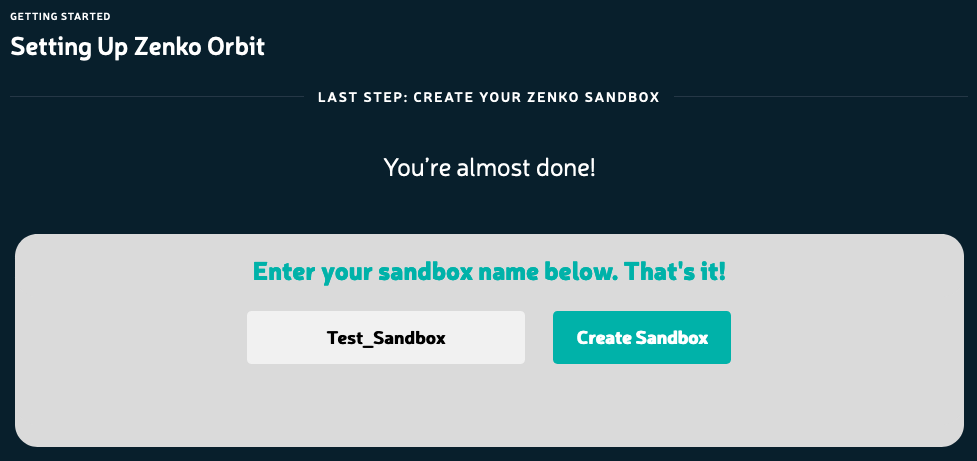
Enter a name for your sandbox and click Create Sandbox.
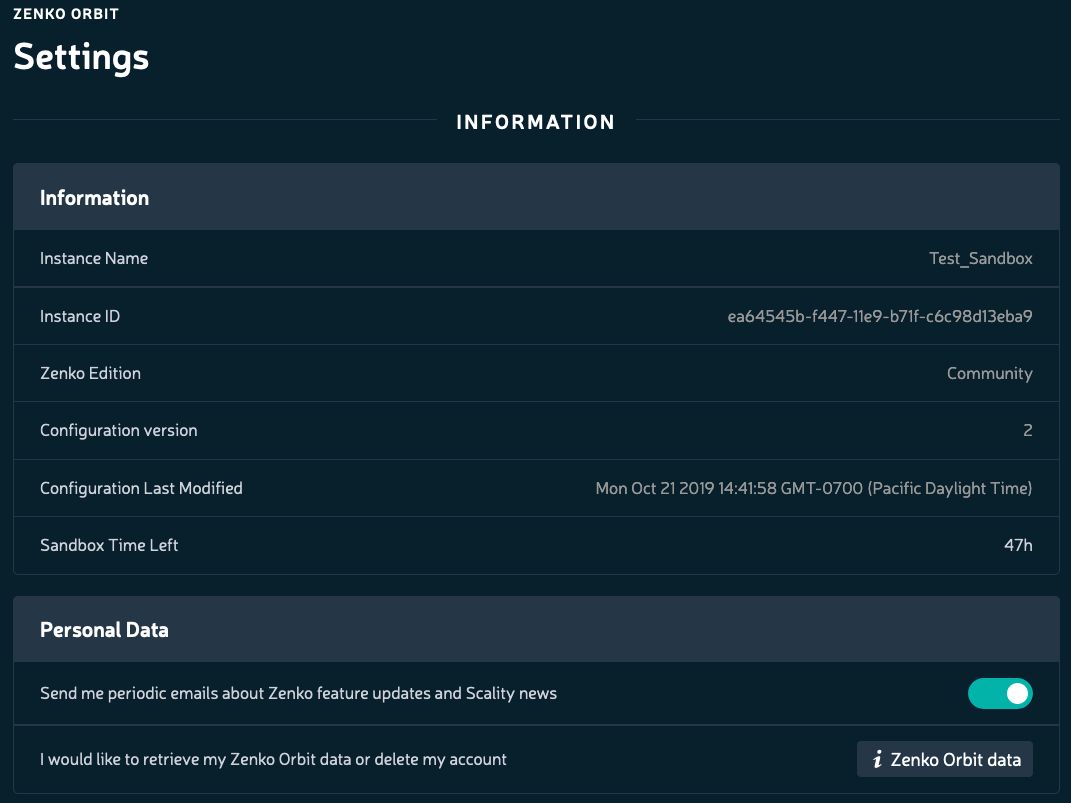
After less than a minute, the Settings window displays:

Your sandbox is created. Depending on server load, there may be a delay of a few minutes to complete the Orbit setup.
Once setup is complete, you’re taken automatically to the STORAGE ACCOUNTS screen for account creation.
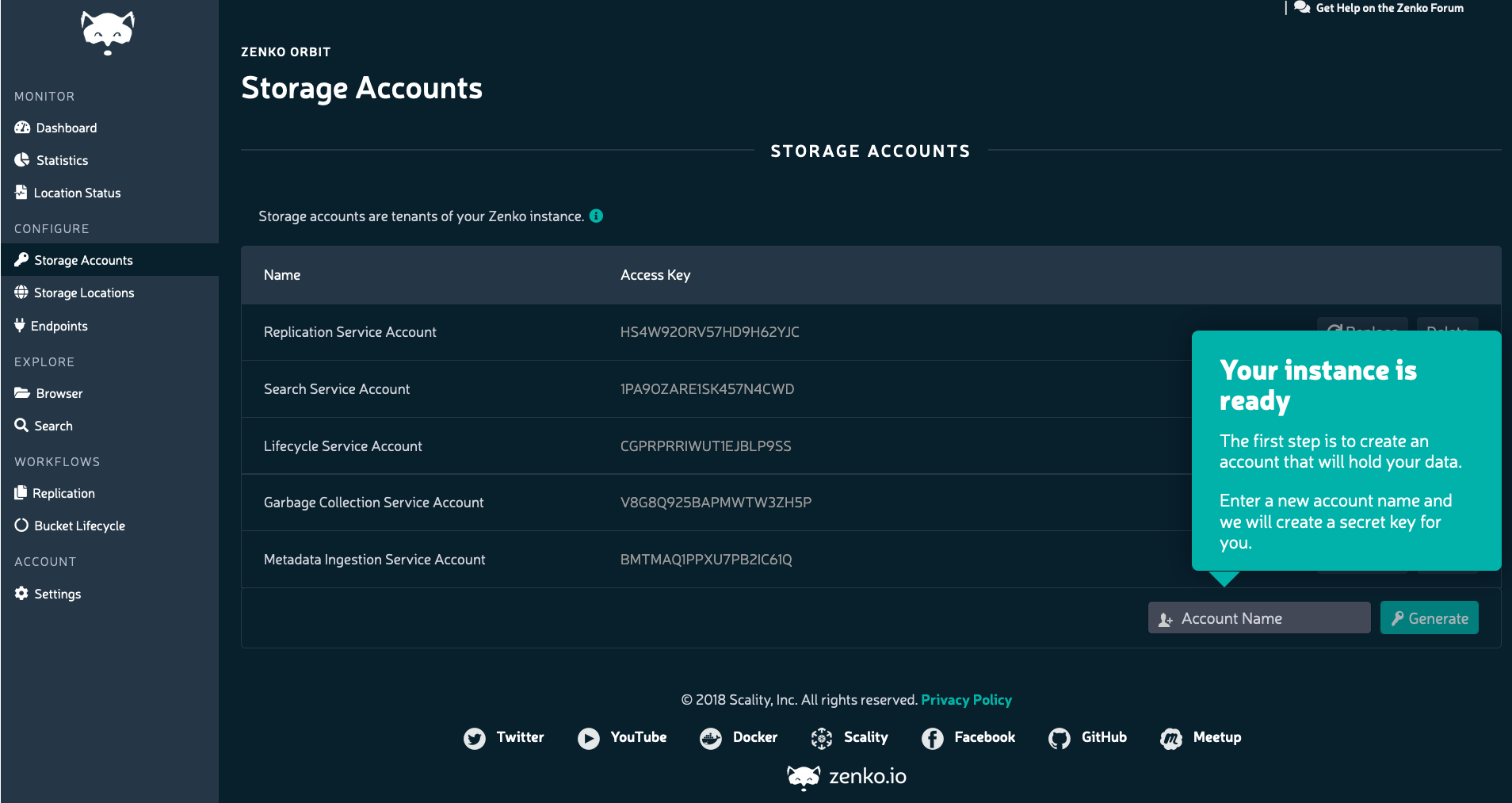
Add a storage account name and click the Generate button. This creates a new user/account, and generates an access/secret key pair.
Click Show to reveal your secret key. Copy this to a secure location, either by highlighting the exposed text or clicking the Copy button to transfer the secret key to your clipboard.
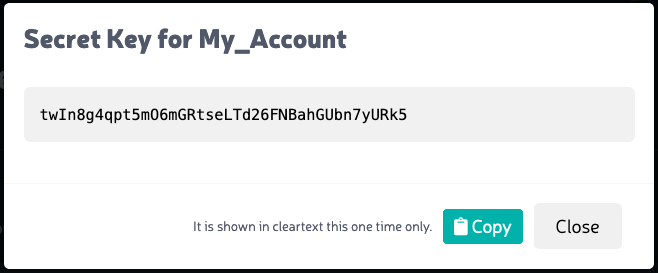
Important
You do not get a second chance. Copy this now.
The sandbox is for demonstration purposes, and is limited for total data managed (1 TB) and time (48 hours). Scality may change these limits without notice. You can review how much time remains for your sandbox by reviewing the Settings window’s Sandbox Time Left indicator.
The sandbox runs against a Zenko instance hosted by Scality. Though this demonstration instance is limited both in its lifespan and in the amount of data it can handle, you can use it to watch Zenko in action.